

What is a computer?
A computer is an electronic device that manipulates information, or data. It has the ability to store, retrieve, and process data. You may already know that you can use a computer to type documents, send email, play games, and browse the Web. You can also use it to edit or create spreadsheets, presentations, and even videos.
Watch the video below to learn about different types of computers.
Looking for the old version of this video? You can still view it here.
Hardware vs. software
Before we talk about different types of computers, let's talk about two things all computers have in common: hardware and software.
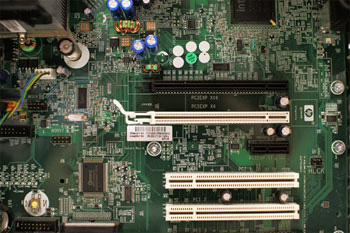
- Hardware is any part of your computer that has a physical structure, such as the keyboard or mouse. It also includes all of the computer's internal parts, which you can see in the image below.
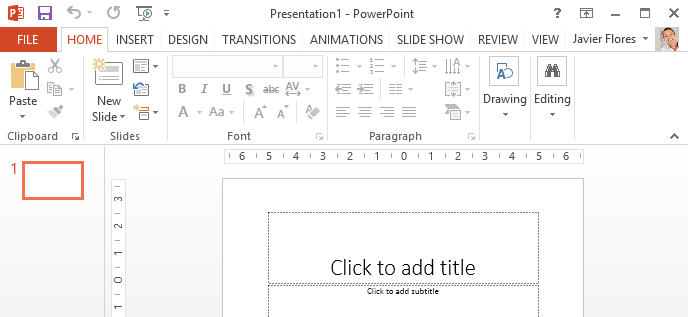
- Software is any set of instructions that tells the hardware what to do and how to do it. Examples of software include web browsers, games, and word processors. Below, you can see an image of Microsoft PowerPoint, which is used to create presentations.
Everything you do on your computer will rely on both hardware and software. For example, right now you may be viewing this lesson in a web browser (software) and using your mouse (hardware) to click from page to page. As you learn about different types of computers, ask yourself about the differences in their hardware. As you progress through this tutorial, you'll see that different types of computers also often use different types of software.
What are the different types of computers?
When most people hear the word computer, they think of a personal computer such as a desktop or laptop. However, computers come in many shapes and sizes, and they perform many different functions in our daily lives. When you withdraw cash from an ATM, scan groceries at the store, or use a calculator, you're using a type of computer.

Desktop computers
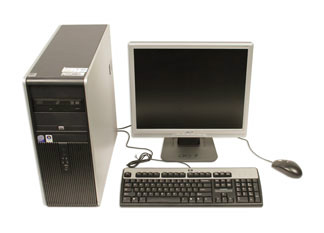
Many people use desktop computers at work, home, and school. Desktop computers are designed to be placed on a desk, and they're typically made up of a few different parts, including the computer case, monitor, keyboard, and mouse.
Laptop computers
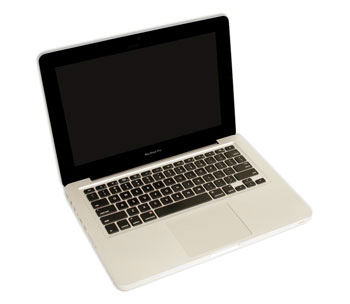
The second type of computer you may be familiar with is a laptop computer, commonly called a laptop. Laptops are battery-powered computers that are more portable than desktops, allowing you to use them almost anywhere.
Tablet computers
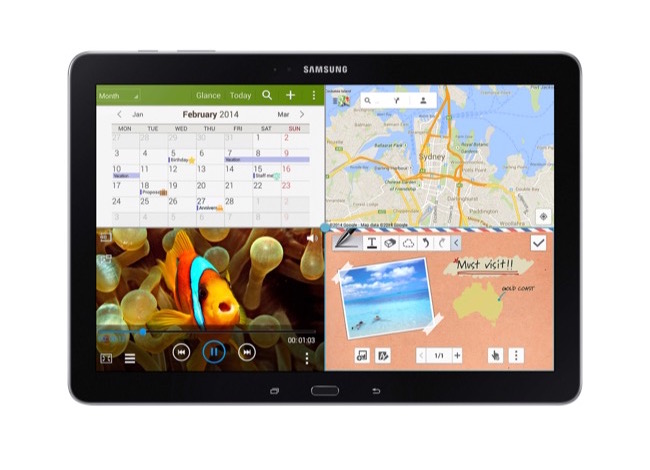
Tablet computers—or tablets—are handheld computers that are even more portable than laptops. Instead of a keyboard and mouse, tablets use a touch-sensitive screen for typing and navigation. The iPad is an example of a tablet.
Servers
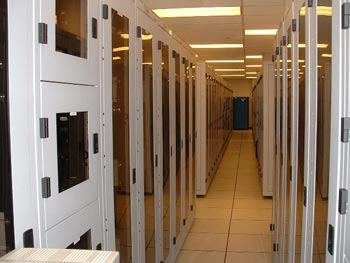
A server is a computer that serves up information to other computers on a network. For example, whenever you use the Internet, you're looking at something that's stored on a server. Many businesses also use local file servers to store and share files internally.
Other types of computers
Many of today's electronics are basically specialized computers, though we don't always think of them that way. Here are a few common examples.
- Smartphones: Many cell phones can do a lot of things computers can do, including browsing the Internet and playing games. They are often called smartphones.
- Wearables: Wearable technology is a general term for a group of devices—including fitness trackers and smartwatches—that are designed to be worn throughout the day. These devices are often called wearables for short.
- Game consoles: A game console is a specialized type of computer that is used for playing video games on your TV.
- TVs: Many TVs now include applications—or apps—that let you access various types of online content. For example, you can stream video from the Internet directly onto your TV.
PCs and Macs
Personal computers come in two main styles: PC and Mac. Both are fully functional, but they have a different look and feel, and many people prefer one or the other.
PCs
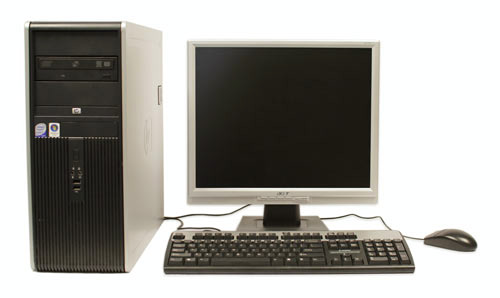
This type of computer began with the original IBM PC that was introduced in 1981. Other companies began creating similar computers, which were called IBM PC Compatible (often shortened to PC). Today, this is the most common type of personal computer, and it typically includes the Microsoft Windows operating system.
Macs
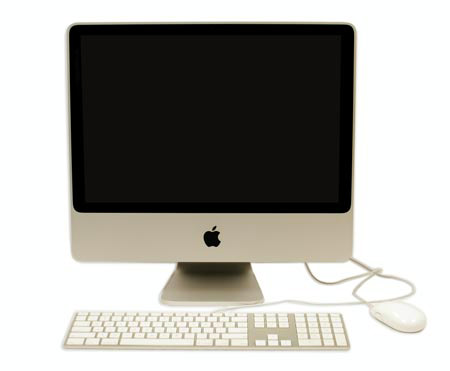
The Macintosh computer was introduced in 1984, and it was the first widely sold personal computer with a graphical user interface, or GUI (pronounced gooey). All Macs are made by one company (Apple), and they almost always use the Mac OS X operating system.
Lesson 3: Basic Parts of a Computer
Introduction
The basic parts of a desktop computer are the computer case, monitor, keyboard, mouse, and power cord. Each part plays an important role whenever you use a computer.
Watch the video below to learn about the basic parts of a desktop computer. Note: New video coming soon!
Computer case
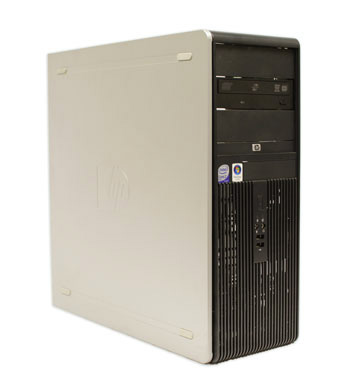
The computer case is the metal and plastic box that contains the main components of the computer, including the motherboard, central processing unit (CPU), and power supply. The front of the case usually has an On/Off button and one or more optical drives.
Computer cases come in different shapes and sizes. A desktop case lies flat on a desk, and the monitor usually sits on top of it. A tower case is tall and sits next to the monitor or on the floor. All-in-one computers come with the internal components built into the monitor, which eliminates the need for a separate case.
Monitor
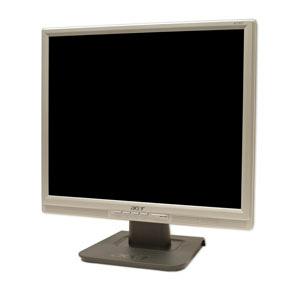
The monitor works with a video card, located inside the computer case, to display images and text on the screen. Most monitors have control buttons that allow you to change your monitor's display settings, and some monitors also have built-in speakers.
Newer monitors usually have LCD (liquid crystal display) or LED (light-emitting diode) displays. These can be made very thin, and they are often called flat-panel displays. Older monitors use CRT (cathode ray tube) displays. CRT monitors are much larger and heavier, and they take up more desk space.
Keyboard
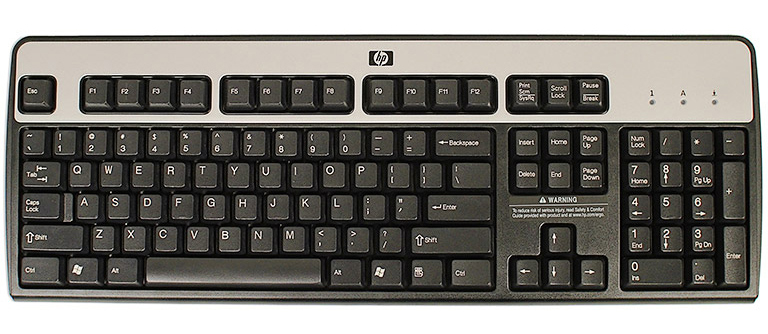
The keyboard is one of the main ways to communicate with a computer. There are many different types of keyboards, but most are very similar and allow you to accomplish the same basic tasks.
Click the buttons in the interactive below to learn about the different parts of the keyboard.
If you want to learn how to type or improve your touch-typing skills, check out our free Typing Tutorial.
Mouse
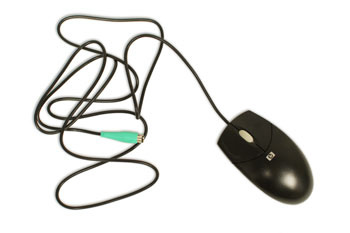
The mouse is another important tool for communicating with computers. Commonly known as a pointing device, it lets you point to objects on the screen, click on them, and move them.
There are two main mouse types: optical and mechanical. The optical mouse uses an electronic eye to detect movement and is easier to clean. The mechanical mouse uses a rolling ball to detect movement and requires regular cleaning to work properly.
To learn the basics of using a mouse, check out our interactive Mouse Tutorial.
Mouse alternatives
There are other devices that can do the same thing as a mouse. Many people find them easier to use, and they also require less desk space than a traditional mouse. The most common mouse alternatives are below.
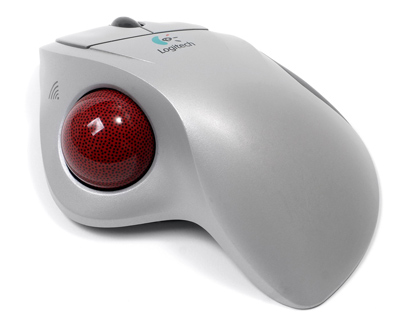
- Trackball: A trackball has a ball that can rotate freely. Instead of moving the device like a mouse, you can roll the ball with your thumb to move the pointer.
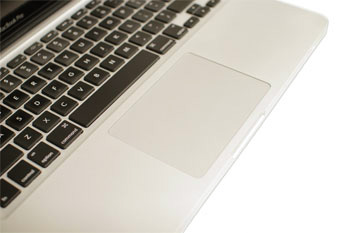
- Touchpad: A touchpad—also called a trackpad—is a touch-sensitive pad that lets you control the pointer by making a drawing motion with your finger. Touchpads are common on laptop computers.
Lesson 4: Buttons and Ports on a Computer
Introduction
Take a look at the front and back of your computer case and count the number of buttons, ports, and slots you see. Now look at your monitor and count any you find there. You probably counted at least 10, and maybe a lot more.
Each computer is different, so the buttons, ports, and sockets will vary from computer to computer. However, there are certain ones you can expect to find on most desktop computers. Learning how these ports are used will help whenever you need to connect something to your computer, like a new printer, keyboard, or mouse.
Watch the video below to learn about the buttons, ports, and slots on a desktop computer.
Looking for the old version of this video? You can still view it here.
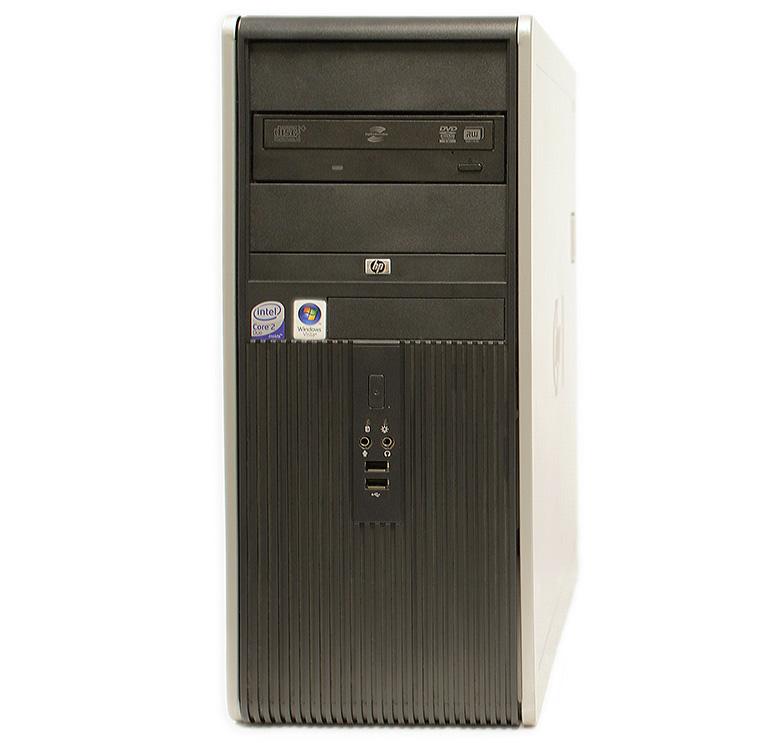
Front of a computer case
Click the buttons in the interactive below to become familiar with the front of a computer.
Back of a computer case
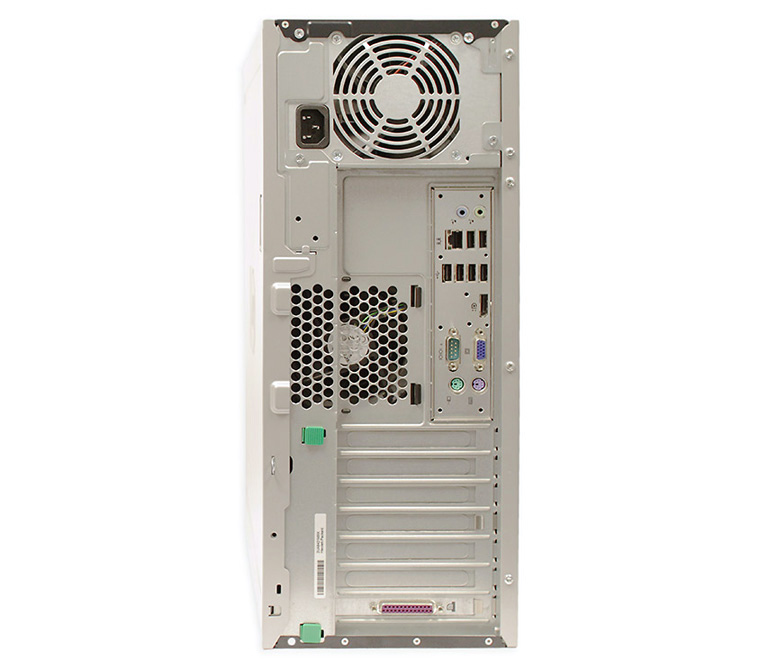
The back of a computer case has connection ports that are made to fit specific devices. The placement will vary from computer to computer, and many companies have their own special connectors for specific devices. Some of the ports may be color coded to help you determine which port is used with a particular device.
Click the buttons in the interactive below to become familiar with the back of a computer.
Other types of ports
There are many other types of ports, such as FireWire, Thunderbolt, and HDMI. If your computer has ports you don't recognize, you should consult your manual for more information.
Now you try it! Practice connecting the cables with the interactive game below.
Peripherals you can use with your computer
The most basic computer setup usually includes the computer case, monitor, keyboard, and mouse, but you can plug many different types of devices into the extra ports on your computer. These devices are called peripherals. Let's take a look at some of the most common ones.
- Printers: A printer is used to print documents, photos, and anything else that appears on your screen. There are many types of printers, including inkjet, laser, and photo printers. There are even all-in-one printers, which can also scan and copy documents.
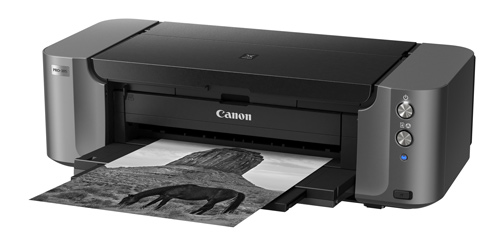
- Scanners: A scanner allows you to copy a physical image or document and save it to your computer as a digital (computer-readable) image. Many scanners are included as part of an all-in-one printer, although you can also buy a separate flatbed or handheld scanner.
- Speakers/headphones: Speakers and headphones are output devices, which means they send information from the computer to the user—in this case, they allow you to hear sound and music. Depending on the model, they may connect to the audio port or the USB port. Some monitors also have built-in speakers.
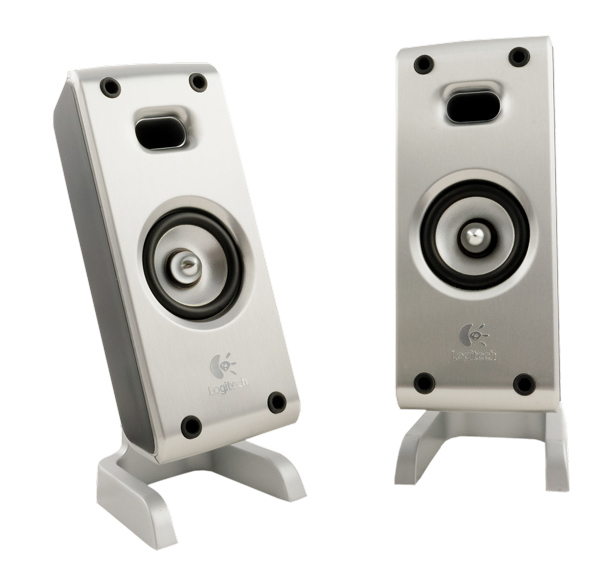
- Microphones: A microphone is a type of input device, or a device that receives information from a user. You can connect a microphone to record sound or talk with someone else over the Internet. Many laptop computers come with built-in microphones.
- Web cameras: A web camera—or webcam—is a type of input device that can record videos and take pictures. It can also transmit video over the Internet in real time, which allows for video chat or video conferencing with someone else. Many webcams also include a microphone for this reason.
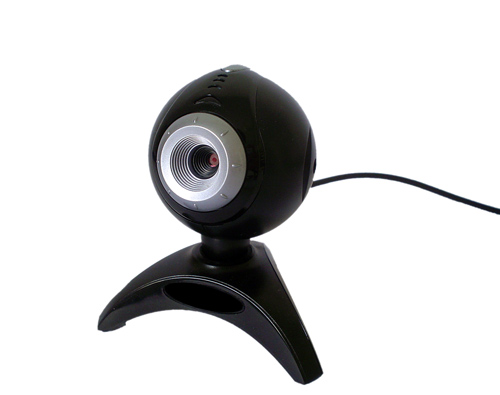
- Game controllers and joysticks: A game controller is used to control computer games. There are many other types of controllers you can use, including joysticks, although you can also use your mouse and keyboard to control most games.
- Digital cameras: A digital camera lets you capture pictures and videos in a digital format. By connecting the camera to your computer's USB port, you can transfer the images from the camera to the computer.
- Mobile phones, MP3 players, tablet computers, and other devices: Whenever you buy an electronic device, such as a mobile phone or MP3 player, check to see if it comes with a USB cable. If it does, this means you can most likely connect it to your computer.
Lesson 5: Inside a Computer
Inside a computer
Have you ever looked inside a computer case, or seen pictures of the inside of one? The small parts may look complicated, but the inside of a computer case isn't really all that mysterious. This lesson will help you master some of the basic terminology and understand a bit more about what goes on inside a computer.
Watch the video below to learn about what's inside a desktop computer.
Looking for the old version of this video? You can still see it here:
Motherboard
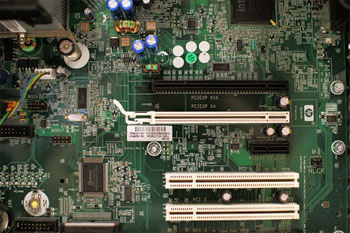
The motherboard is the computer's main circuit board. It's a thin plate that holds the CPU, memory, connectors for the hard drive and optical drives, expansion cards to control the video and audio, and connections to your computer's ports (such as USB ports). The motherboard connects directly or indirectly to every part of the computer.
CPU/processor
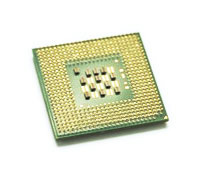
The central processing unit (CPU), also called a processor, is located inside the computer case on the motherboard. It is sometimes called the brain of the computer, and its job is to carry out commands. Whenever you press a key, click the mouse, or start an application, you're sending instructions to the CPU.
The CPU is usually a two-inch ceramic square with a silicon chip located inside. The chip is usually about the size of a thumbnail. The CPU fits into the motherboard's CPU socket, which is covered by the heat sink, an object that absorbs heat from the CPU.
A processor's speed is measured in megahertz (MHz), or millions of instructions per second; and gigahertz (GHz), or billions of instructions per second. A faster processor can execute instructions more quickly. However, the actual speed of the computer depends on the speed of many different components—not just the processor.
RAM (random access memory)
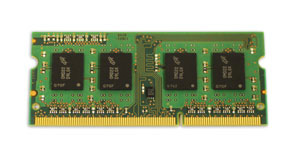
RAM is your system's short-term memory. Whenever your computer performs calculations, it temporarily stores the data in the RAM until it is needed.
This short-term memory disappears when the computer is turned off. If you're working on a document, spreadsheet, or other type of file, you'll need to save it to avoid losing it. When you save a file, the data is written to the hard drive, which acts as long-term storage.
RAM is measured in megabytes (MB) or gigabytes (GB). The more RAM you have, the more things your computer can do at the same time. If you don't have enough RAM, you may notice that your computer is sluggish when you have several programs open. Because of this, many people add extra RAM to their computers to improve performance.
Hard drive
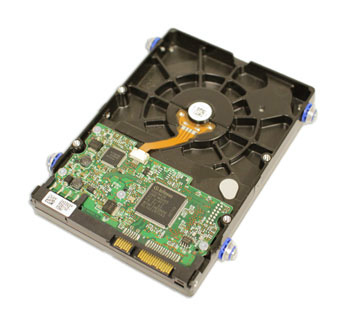
The hard drive is where your software, documents, and other files are stored. The hard drive is long-term storage, which means the data is still saved even if you turn the computer off or unplug it.
When you run a program or open a file, the computer copies some of the data from the hard drive onto the RAM. When you save a file, the data is copied back to the hard drive. The faster the hard drive, the faster your computer can start up and load programs.
Power supply unit
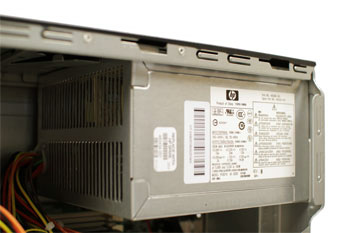
The power supply unit in a computer converts the power from the wall outlet to the type of power needed by the computer. It sends power through cables to the motherboard and other components.
If you decide to open the computer case and take a look, make sure to unplug the computer first. Before touching the inside of the computer, you should touch a grounded metal object—or a metal part of the computer casing—to discharge any static buildup. Static electricity can be transmitted through the computer circuits, which can seriously damage your machine.
Expansion cards
Most computers have expansion slots on the motherboard that allow you to add various types of expansion cards. These are sometimes called PCI (peripheral component interconnect) cards. You may never need to add any PCI cards because most motherboards have built-in video, sound, network, and other capabilities.
However, if you want to boost the performance of your computer or update the capabilities of an older computer, you can always add one or more cards. Below are some of the most common types of expansion cards.
Video card
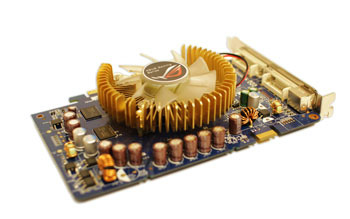
The video card is responsible for what you see on the monitor. Most computers have a GPU (graphics processing unit) built into the motherboard instead of having a separate video card. If you like playing graphics-intensive games, you can add a faster video card to one of the expansion slots to get better performance.
Sound card
The sound card—also called an audio card—is responsible for what you hear in the speakers or headphones. Most motherboards have integrated sound, but you can upgrade to a dedicated sound card for higher-quality sound.
Network card
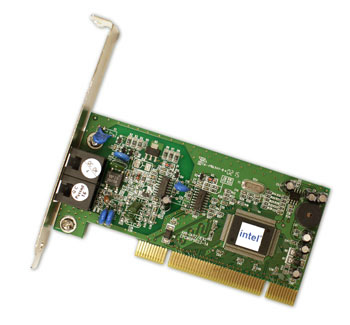
The network card allows your computer to communicate over a network and access the Internet. It can either connect with an Ethernet cable or through a wireless connection (often called Wi-Fi). Many motherboards have built-in network connections, and a network card can also be added to an expansion slot.
Bluetooth card (or adapter)
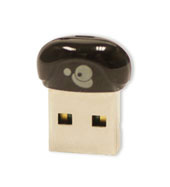
Bluetooth is a technology for wireless communication over short distances. It's often used in computers to communicate with wireless keyboards, mice, and printers. It's commonly built into the motherboard or included in a wireless network card. For computers that don't have Bluetooth, you can purchase a USB adapter, often called a dongle.
Lesson 6: Laptop Computers
What is a laptop computer?
A laptop is a personal computer that can be easily moved and used in a variety of locations. Most laptops are designed to have all of the functionality of a desktop computer, which means they can generally run the same software and open the same types of files. However, laptops also tend to be more expensive than comparable desktop computers.
Watch the video below to learn about laptop computers. Note: New video coming soon!
How is a laptop different from a desktop?
Because laptops are designed for portability, there are some important differences between them and desktop computers. A laptop has an all-in-one design, with a built-in monitor, keyboard, touchpad (which replaces the mouse), and speakers. This means it is fully functional, even when no peripherals are connected. A laptop is also quicker to set up, and there are fewer cables to get in the way.
You'll also have to the option to connect a regular mouse, larger monitor, and other peripherals. This basically turns your laptop into a desktop computer, with one main difference: You can easily disconnect the peripherals and take the laptop with you wherever you go.
Here are the main differences you can expect with a laptop.
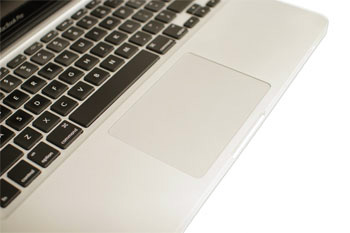
- Touchpad: A touchpad—also called a trackpad—is a touch-sensitive pad that lets you control the pointer by making a drawing motion with your finger.
- Battery: Every laptop has a battery, which allows you to use the laptop when it's not plugged in. Whenever you plug in the laptop, the battery recharges. Another benefit of having a battery is that it can provide backup power to the laptop if the power goes out.
- AC adapter: A laptop usually has a specialized power cable called an AC adapter, which is designed to be used with that specific type of laptop.
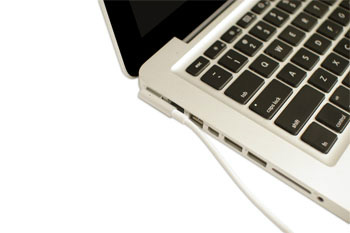
- Ports: Most laptops have the same types of ports found on desktop computers (such as USB), although they usually have fewer ports to save space. However, some ports may be different, and you may need an adapter in order to use them.
- Price: Generally speaking, laptops tend to be more expensive than a desktop computer with the same internal components. While you may find that some basic laptops cost less than desktop computers, these are usually much less powerful machines.
Lesson 7: Mobile Devices
What is a mobile device?
A mobile device is a general term for any type of handheld computer. These devices are designed to be extremely portable, and they can often fit in your hand. Some mobile devices—like tablets, e-readers, and smartphones—are powerful enough to do many of the same things you can do with a desktop or laptop computer.
Tablet computers
Like laptops, tablet computers are designed to be portable. However, they provide a different computing experience. The most obvious difference is that tablet computers don't have keyboards or touchpads. Instead, the entire screen is touch-sensitive, allowing you to type on a virtual keyboard and use your finger as a mouse pointer.
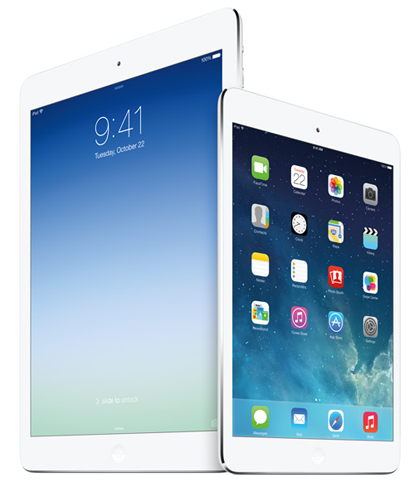
Tablet computers can't necessarily do everything traditional computers can do. For many people, a traditional computer like a desktop or laptop is still needed in order to use some programs. However, the convenience of a tablet computer means it may be ideal as a second computer.
E-readers
E-book readers—also called e-readers—are similar to tablet computers, except they are mainly designed for reading e-books (digital, downloadable books). Notable examples include the Amazon Kindle, Barnes & Noble Nook, and Kobo. Most e-readers use an e-ink display, which is easier to read than a traditional computer display. You can even read in bright sunlight, just like if you were reading a regular book.
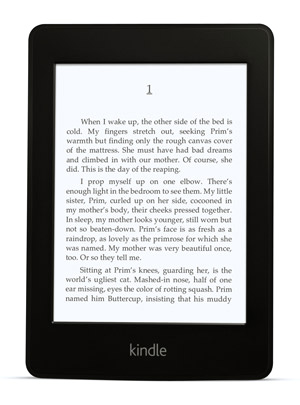
You don't need an e-reader to read e-books. They can also be read on tablets, smartphones, laptops, and desktops.
Smartphones
A smartphone is a more powerful version of a traditional cell phone. In addition to the same basic features—phone calls, voicemail, text messaging—smartphones can connect to the Internet over Wi-Fi or a cellular network (which requires purchasing a monthly data plan). This means you can use a smartphone for the same things you would normally do on a computer, such as checking your email, browsing the Web, or shopping online.
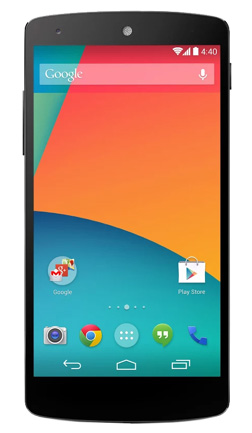
Most smartphones use a touch-sensitive screen, meaning there isn't a physical keyboard on the device. Instead, you'll type on a virtual keyboard and use your fingers to interact with the display. Other standard features include a high-quality digital camera and the ability to play digital music and video files. For many people, a smartphone can actually replace electronics like an old laptop, digital music player, and digital camera in the same device.
Lesson 8: Understanding Operating Systems
What is an operating system?
An operating system is the most important software that runs on a computer. It manages the computer's memory and processes, as well as all of its software and hardware. It also allows you to communicate with the computer without knowing how to speak the computer's language. Without an operating system, a computer is useless.
Watch the video below to learn more about operating systems.
Looking for the old version of this video? You can still view it here.
The operating system's job
Your computer's operating system (OS) manages all of the software and hardware on the computer. Most of the time, there are several different computer programs running at the same time, and they all need to access your computer's central processing unit (CPU), memory, and storage. The operating system coordinates all of this to make sure each program gets what it needs.
Types of operating systems
Operating systems usually come pre-loaded on any computer you buy. Most people use the operating system that comes with their computer, but it's possible to upgrade or even change operating systems. The three most common operating systems for personal computers are Microsoft Windows, macOS, and Linux.
Modern operating systems use a graphical user interface, or GUI (pronounced gooey). A GUI lets you use your mouse to click icons, buttons, and menus, and everything is clearly displayed on the screen using a combination of graphics and text.
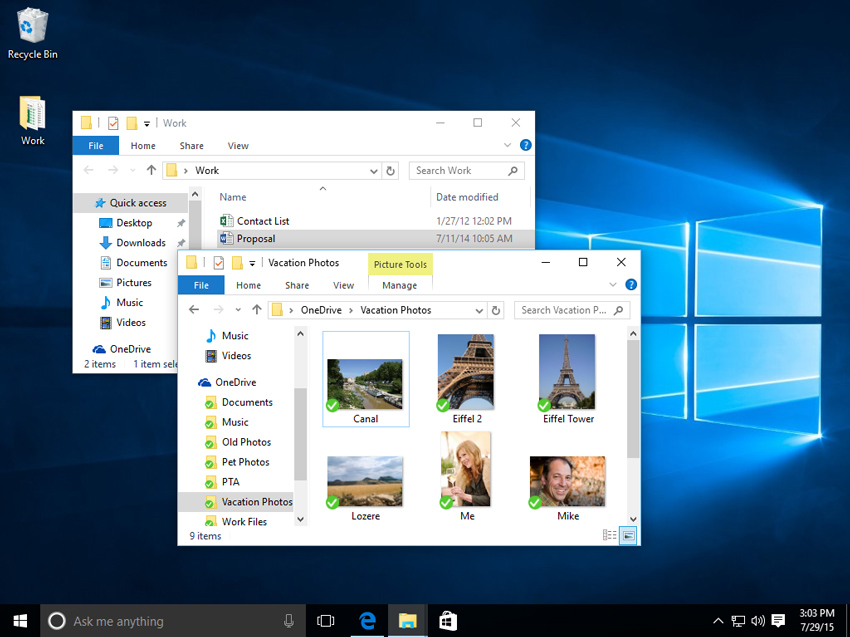
Each operating system's GUI has a different look and feel, so if you switch to a different operating system it may seem unfamiliar at first. However, modern operating systems are designed to be easy to use, and most of the basic principles are the same.
Microsoft Windows
Microsoft created the Windows operating system in the mid-1980s. There have been many different versions of Windows, but the most recent ones are Windows 10 (released in 2015), Windows 8 (2012), Windows 7 (2009), and Windows Vista (2007). Windows comes pre-loaded on most new PCs, which helps to make it the most popular operating system in the world.
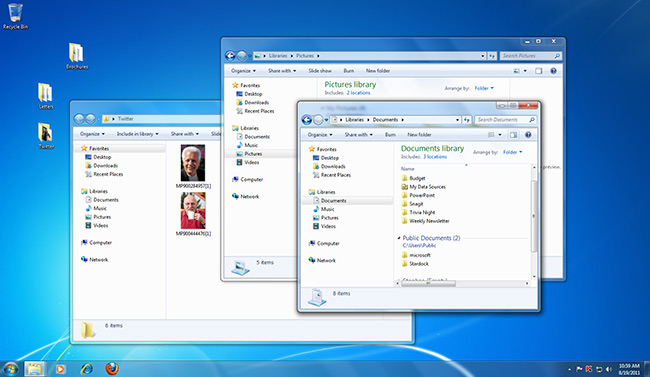
Check out our tutorials on Windows Basics and specific Windows versions for more information.macOS
macOS (previously called OS X) is a line of operating systems created by Apple. It comes preloaded on all Macintosh computers, or Macs. Some of the specific versions include Mojave (released in 2018), High Sierra (2017), and Sierra (2016).
According to StatCounter Global Stats, macOS users account for less than 10% of global operating systems—much lower than the percentage of Windows users (more than 80%). One reason for this is that Apple computers tend to be more expensive. However, many people do prefer the look and feel of macOS over Windows.
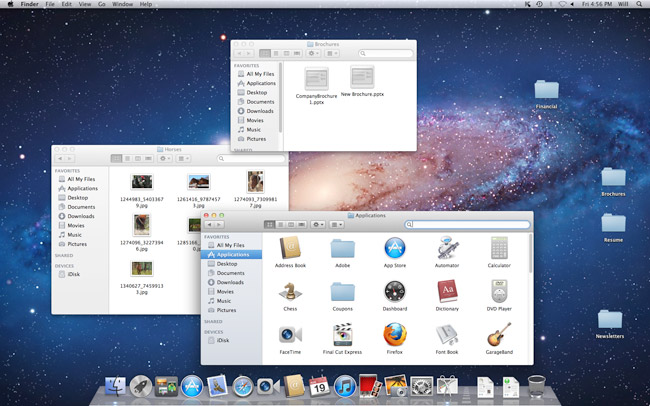
Check out our macOS Basics tutorial for more information.
Linux
Linux (pronounced LINN-ux) is a family of open-source operating systems, which means they can be modified and distributed by anyone around the world. This is different from proprietary software like Windows, which can only be modified by the company that owns it. The advantages of Linux are that it is free, and there are many different distributions—or versions—you can choose from.
According to StatCounter Global Stats, Linux users account for less than 2% of global operating systems. However, most servers run Linux because it's relatively easy to customize.
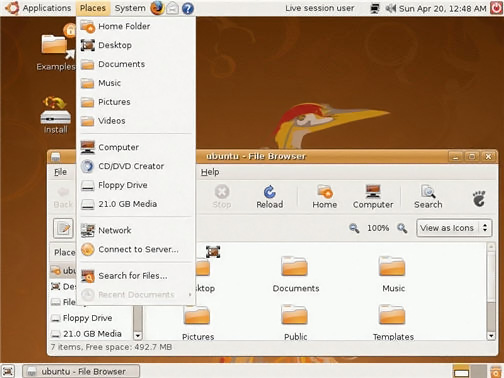
To learn more about different distributions of Linux, visit the Ubuntu, Linux Mint, and Fedora websites, or refer to our Linux Resources. For a more comprehensive list, you can visit MakeUseOf's list of The Best Linux Distributions.
Operating systems for mobile devices
The operating systems we've been talking about so far were designed to run on desktop and laptop computers. Mobile devices such as phones, tablet computers, and MP3 players are different from desktop and laptop computers, so they run operating systems that are designed specifically for mobile devices. Examples of mobile operating systems include Apple iOS and Google Android. In the screenshot below, you can see iOS running on an iPad.
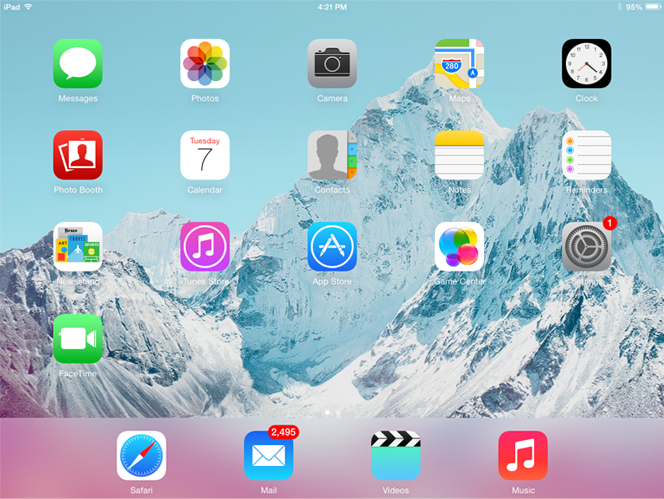
Operating systems for mobile devices generally aren't as fully featured as those made for desktop and laptop computers, and they aren't able to run all of the same software. However, you can still do a lot of things with them, like watch movies, browse the Web, manage your calendar, and play games.
To learn more about mobile operating systems, check out our Mobile Devices tutorials.
Lesson 9: Understanding Applications
What is an application?
You may have heard people talking about using a program, an application, or an app. But what exactly does that mean? Simply put, an app is a type of software that allows you to perform specific tasks. Applications for desktop or laptop computers are sometimes called desktop applications, while those for mobile devices are called mobile apps.
When you open an application, it runs inside the operating system until you close it. Most of the time, you will have more than one application open at the same time, which is known as multi-tasking.
App is a common term for an application, especially for simple applications that can be downloaded inexpensively or even for free. Many apps are also available for mobile devices and even some TVs.
Watch the video below to learn more about applications.
Looking for the old version of this video? You can still view it here.
Desktop applications
There are countless desktop applications, and they fall into several categories. Some are more full featured (like Microsoft Word), while others may only do one or two things (like a clock or calendar app). Below are just a few types of applications you might use.
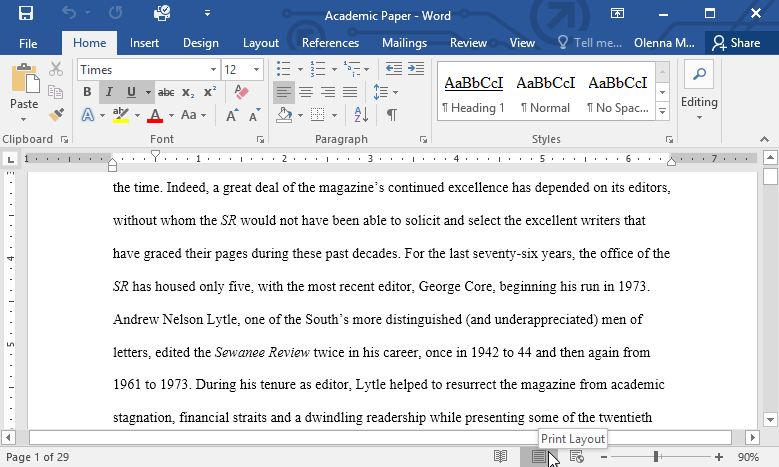
- Word processors: A word processor allows you to write a letter, design a flyer, and create many other types of documents. The most well-known word processor is Microsoft Word.
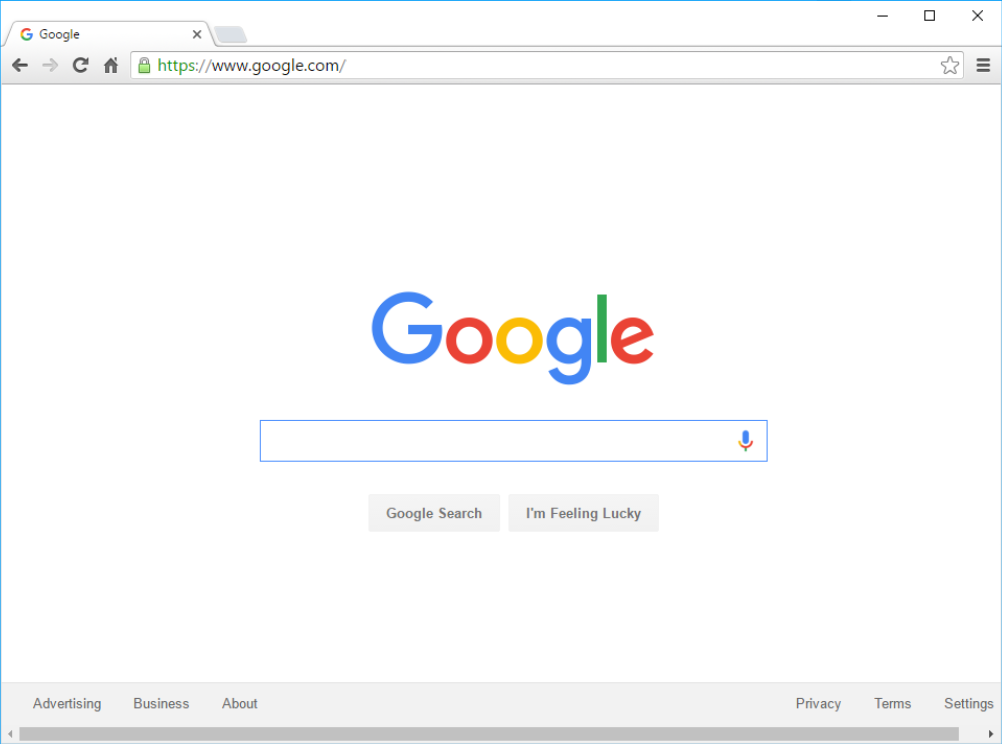
- Web browsers: A web browser is the tool you use to access the Internet. Most computers come with a web browser pre-installed, but you can also download a different one if you prefer. Examples of browsers include Internet Explorer, Mozilla Firefox, Google Chrome, and Safari.
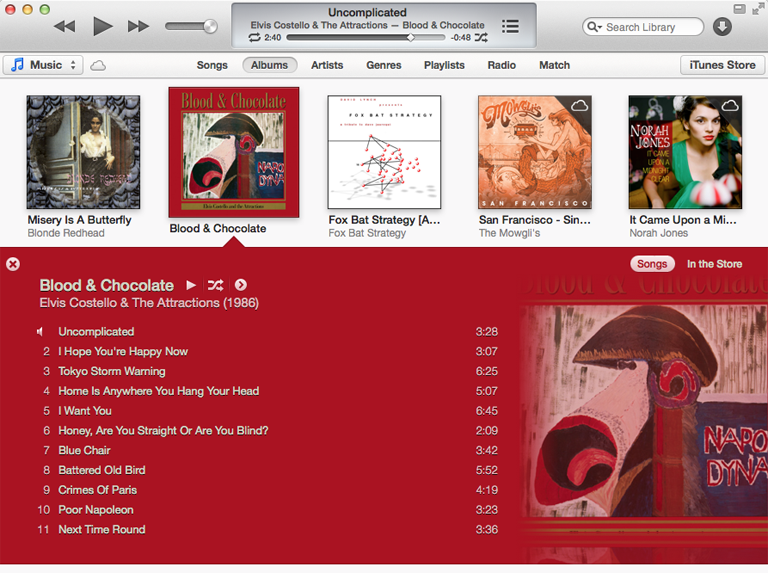
- Media players: If you want to listen to MP3s or watch movies you've downloaded, you'll need to use a media player. Windows Media Player and iTunes are popular media players.
- Games: There are many types of games you can play on your computer. They range from card games like Solitaire to action games like Halo. Many action games require a lot of computing power, so they may not work unless you have a newer computer.
Mobile apps
Desktop and laptop computers aren't the only devices that can run applications. You can also download apps for mobile devices like smartphones and tablets. Here are a few examples of mobile apps.
- Gmail: You can use the Gmail app to easily view and send emails from your mobile device. It's available for Android and iOS devices.
- Instagram: You can use Instagram to quickly share photos with your friends and family. It's available for Android and iOS.
- Duolingo: With a combination of quizzes, games, and other activities, this app can help you learn new languages. It's available for Android and iOS.
GCFLearnFree.org offers a variety of mobile apps. You can go to our Mobile Apps page to download them for free.
Installing new applications
Every computer and mobile device will come with some applications already built in, such as a web browser and media player. However, you can also purchase and install new apps to add more functionality. You can review our lessons on Installing Software on Your Windows PC, Installing Software on Your Mac, and Free Software to learn more.
- Word processors: A word processor allows you to write a letter, design a flyer, and create many other types of documents. The most well-known word processor is Microsoft Word.
Lesson 10: Setting Up a Computer
Setting up a computer
So you have a new computer and you're ready to set it up. This may seem like an overwhelming and complicated task, but it's actually a lot easier than you might think! Most computers are set up in a similar way, so it doesn't matter what brand of computer you have.
If you're setting up a new computer that's still in the box, you'll probably find a how-to guide that includes step-by-step details. Even if it didn't include instructions, you can still set up the computer in a few easy steps. We'll take you through the different steps needed to set up a typical computer.
Watch the video below to learn how to set up a desktop computer.
Looking for the old version of this video? You can still view it here.
Setting up a laptop computer
If you have a laptop, setup should be easy: Just open it and press the power button. If the battery isn't charged, you'll need to plug in the AC adapter. You can continue using the laptop while it charges.
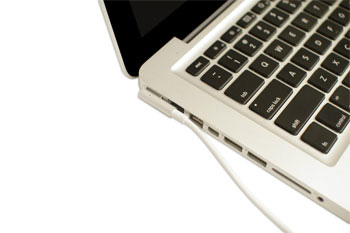
If your laptop has any peripherals, like external speakers, you may want to read the instructions below. Laptops and desktops generally use the same types of connections, so the same steps will still apply.
Setting up a desktop computer
Step 1
Unpack the monitor and computer case from the box. Remove any plastic covering or protective tape. Place the monitor and computer case on a desk or work area.
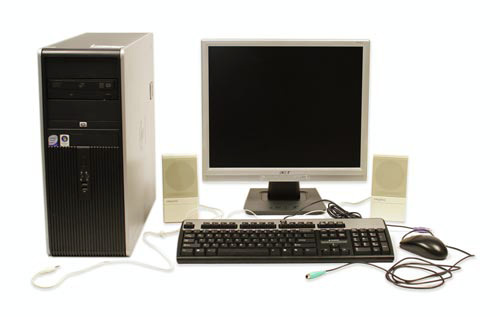
Be sure to place your computer case in an area that is well ventilated and has good air flow. This will help to prevent the computer from overheating.
Step 2
Locate the monitor cable. There are several types of monitor cables, so the one for your computer may not look like the one in the image below.
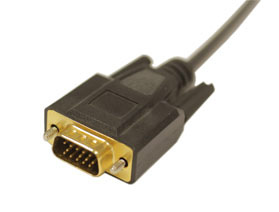
If you're having trouble finding your monitor cable, refer to the instruction manual for your computer. (If you have an all-in-one computer that's built into the monitor, you can skip to Step 4).
Step 3
Connect one end of the cable to the monitor port on the back of the computer case and the other end to the monitor. If you're using a VGA cable like the one in the picture below, you'll want to tighten the screws on the monitor cable to secure it.
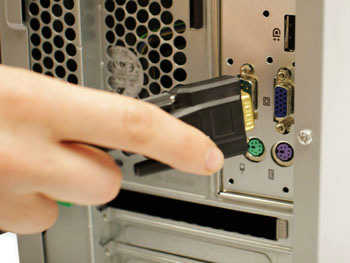
Many computer cables will only fit a specific way. If the cable doesn't fit, don't force it or you might damage the connectors. Make sure the plug aligns with the port, then connect it.
To figure out which cables belong in which ports, try our Connecting Cables interactive.
Step 4
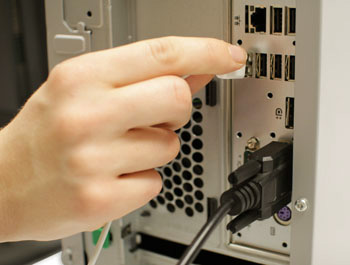
Unpack the keyboard and determine whether it uses a USB (rectangular) connector or a PS/2 (round) connector. If it uses a USB connector, plug it into any of the USB ports on the back of the computer. If it uses a PS/2 connector, plug it into the purple keyboard port on the back of the computer.
Step 5
Unpack the mouse and determine whether it uses a USB or PS/2 connector. If it uses a USB connector, plug it into any of the USB ports on the back of the computer. If it uses a PS/2 connector, plug it into the green mouse port on the back of the computer.
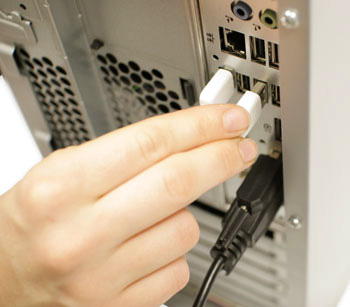
If your keyboard has a USB port, you can connect your mouse to the keyboard instead of connecting it directly to your computer.
If you have a wireless mouse or keyboard, you may need to connect a Bluetooth dongle (USB adapter) to your computer. However, many computers have built-in Bluetooth, so an adapter may not be necessary.
Step 6
If you have external speakers or headphones, you can connect them to your computer's audio port (either on the front or back of the computer case). Many computers have color-coded ports. Speakers or headphones connect to the green port, and microphones connect to the pink port. The blue port is the line in, which can be used with other types of devices.
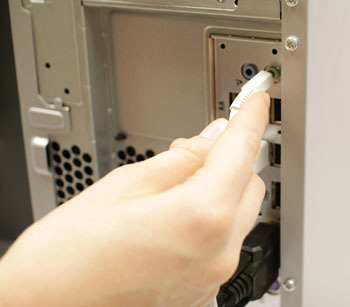
Some speakers, headphones, and microphones have USB connectors instead of the usual audio plug. These can be connected to any USB port. In addition, many computers have speakers or microphones built into the monitor.
Step 7
Locate the two power supply cables that came with your computer. Plug the first power supply cable into the back of the computer case and then into a surge protector. Then, using the other cable, connect the monitor to the surge protector.
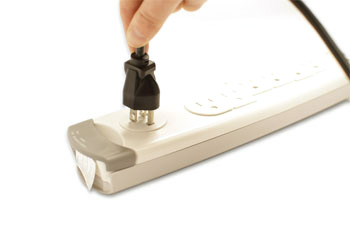
You can also use an uninterruptable power supply (UPS), which acts as a surge protector and provides temporary power if there is a power outage.
Step 8
Finally, plug the surge protector into a wall outlet. You may also need to turn on the surge protector if it has a power switch.
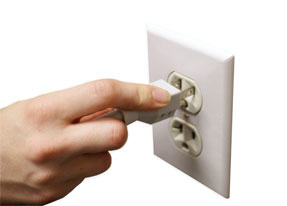
If you don't have a surge protector, you can plug the computer directly into the wall. However, this is not recommended because electrical surges can damage your computer.
Step 9
If you have a printer, scanner, webcam, or other peripherals, you can connect them at this point. Many peripherals are plug and play, which means they will be recognized by your computer as soon as they are plugged in.
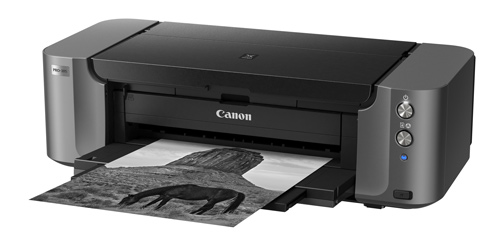
Other peripherals may include software that needs to be installed before you can begin using them. Use the instructions included with the device to install it if necessary.
Generally, peripherals are optional, and you can add new ones at any time; you don't have to add all peripherals during the initial setup of your computer.
Setup complete!
That's it—you've finished setting up your computer, so it's time to start using it! We'll talk more about how to use your computer over the next several lessons.
Getting started with your first computer
A computer is more than just another household appliance. The vast amount of information and possibilities can be overwhelming. But you can accomplish a lot with a computer, and using one can be a good experience. Let's walk through getting started with your first computer.
Turning on a computer for the first time can be different from one computer to the next. Your experience could be different from this lesson. It's OK to ask someone for help.
If you're using a desktop computer, you'll need to make sure that the keyboard, mouse, and monitor are plugged into the computer case before you continue. Review our lesson on Setting Up a Computer to learn how.
Turning on a computer
The very first step is to turn on the computer. To do this, locate and press the power button. It's in a different place on every computer, but it will have the universal power button symbol (shown below).

Once turned on, your computer takes time before it's ready to use. You may see a few different displays flash on the screen. This process is called booting up, and it can take anywhere from 15 seconds to several minutes.
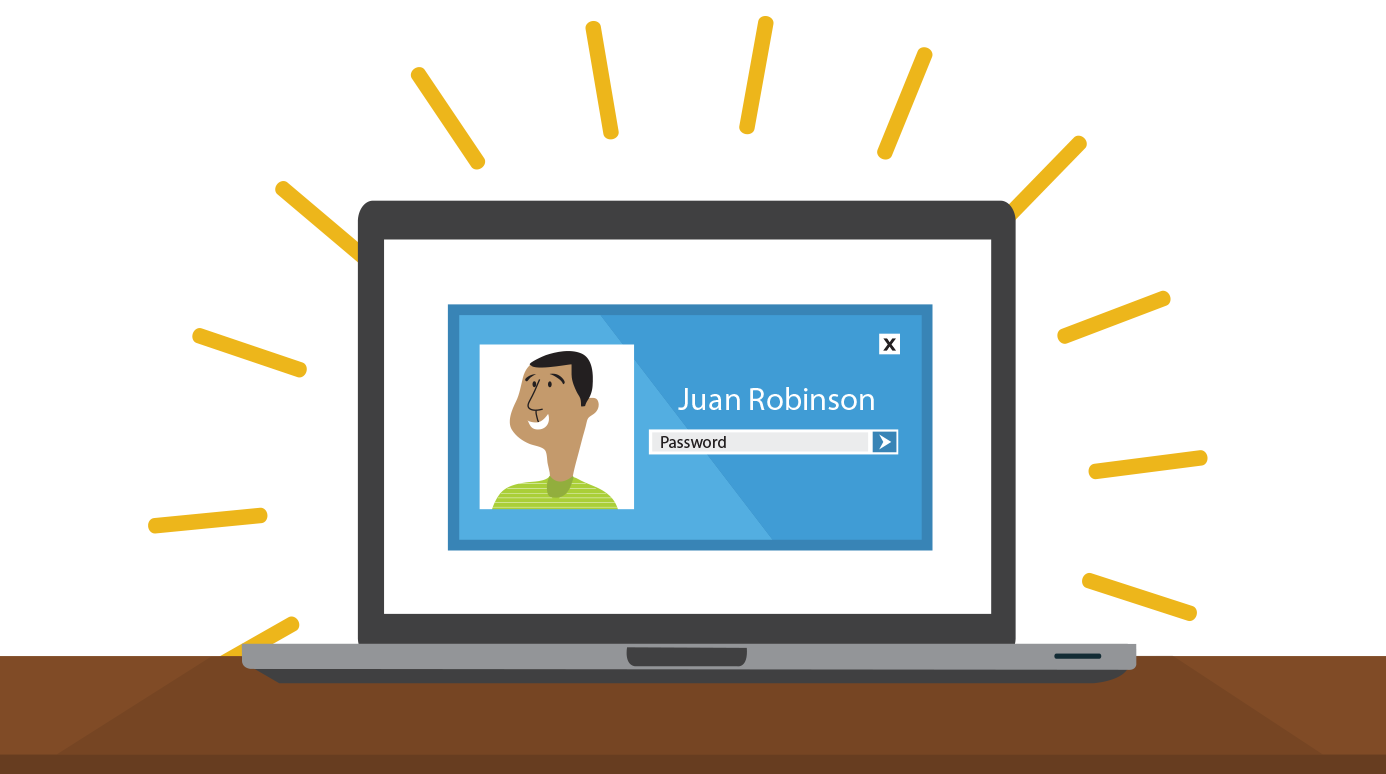
Once the computer has booted up, it may be ready to use, or it may require you to log in. This means identifying yourself by typing your user name or selecting your profile, then typing your password. If you've never logged in to your computer before, you may need to create an account.
The keyboard and mouse
You interact with a computer mainly by using the keyboard and mouse, or a trackpad on laptops. Learning to use these devices is essential to learning to use a computer. Most people find it comfortable to place the keyboard on the desk directly in front of them and the mouse to one side of the keyboard.
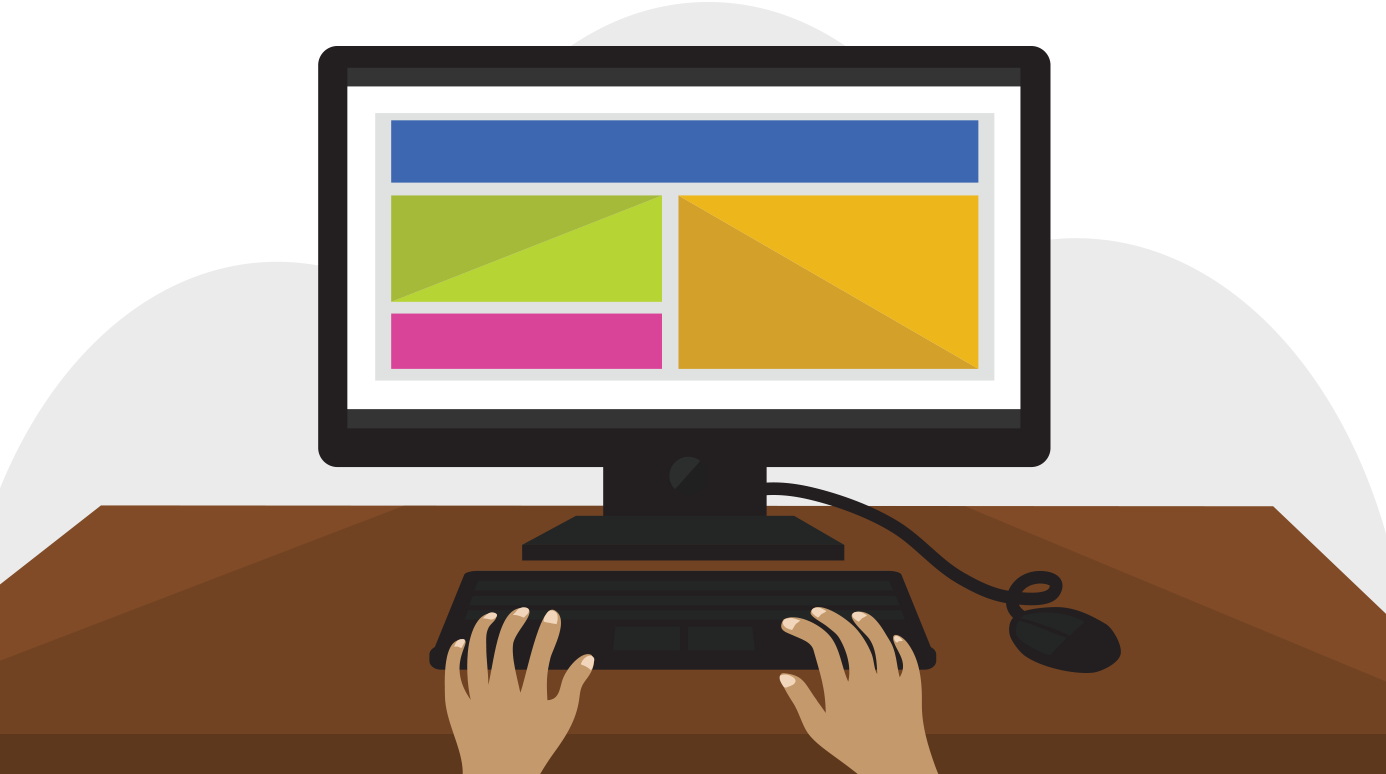
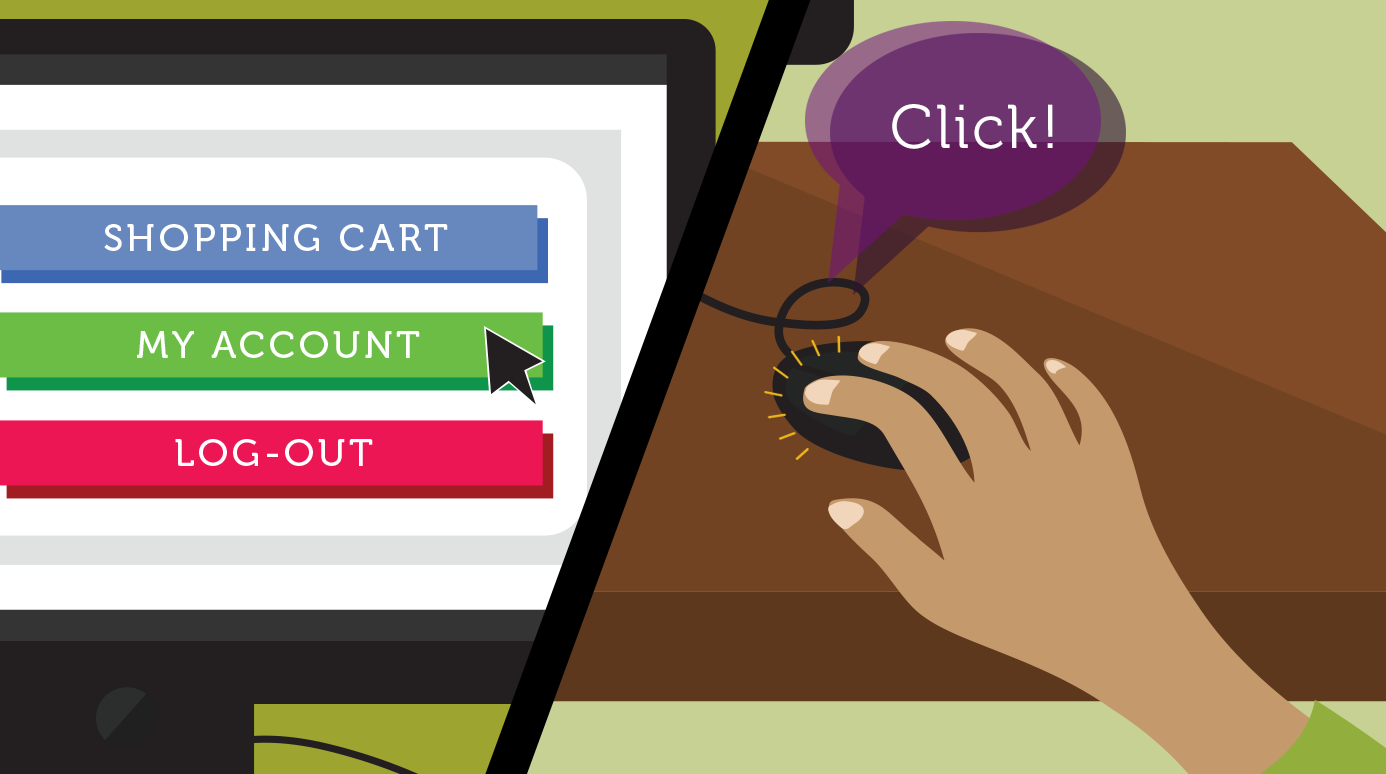
The mouse controls the pointer on the screen. Whenever you move the mouse across the desk, the pointer will move in a similar manner. A mouse usually has two buttons, which are referred to as the left button and the right button. You will often interact with the computer by moving the mouse pointer over something on the computer screen, then clicking one of the buttons.
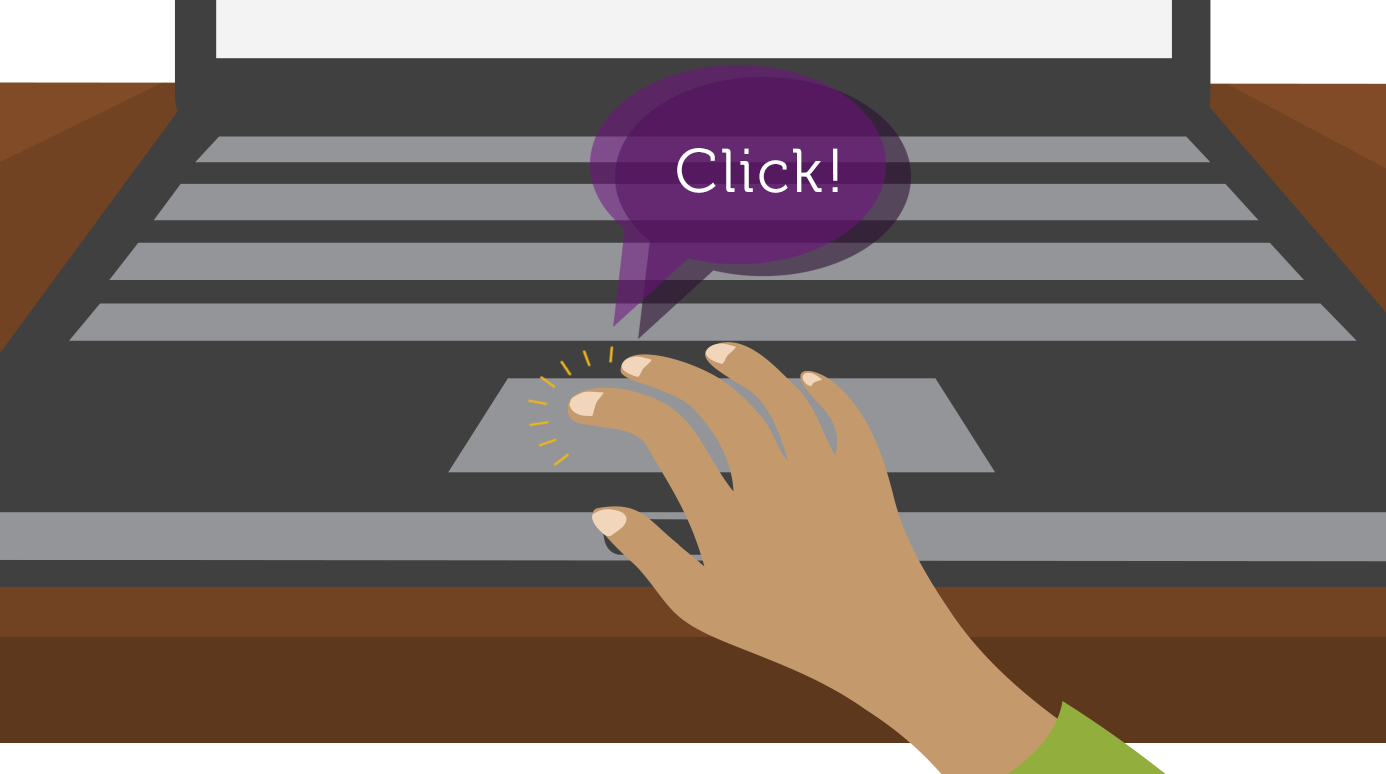
On laptops, you can use the trackpad, located below the keyboard, instead of a mouse. Simply drag your finger across the trackpad to move the pointer on the screen. Some trackpads do not have buttons, so you'll either press or tap the trackpad to click.
The keyboard allows you to type letters, numbers, and words into the computer. Whenever you see a flashing vertical line—called the cursor—you can start typing.
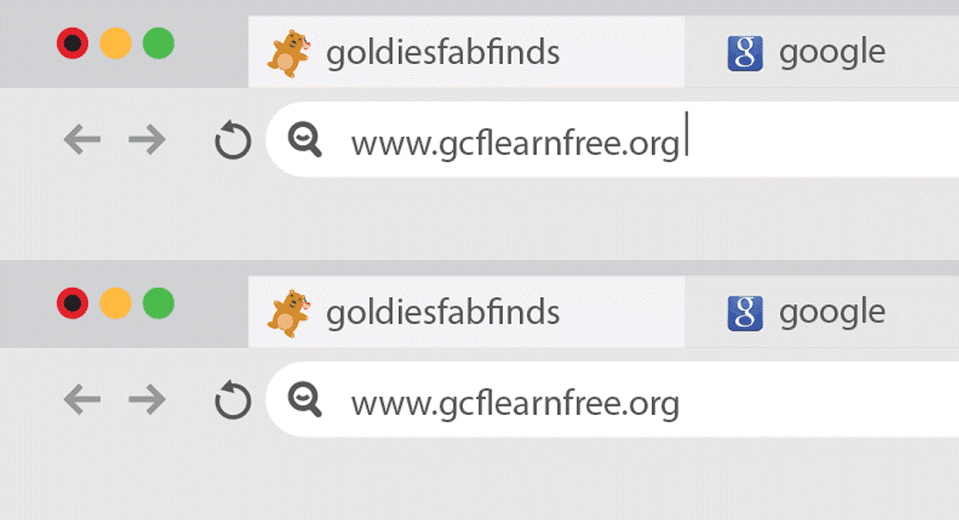
Note that the mouse pointer is also called a cursor, but it is shaped differently. The keyboard cursor is also called the insertion point.
Using a computer
The main screen you'll start from is the desktop. This is sort of like a main menu or a table of contents. From here, you can access the programs and features you need to use your computer.
Icons are used to represent the different files, applications, and commands on your computer. An icon is a small image that's intended to give you an idea at a glance of what it represents, like a logo. Double-clicking an icon on the desktop will open that application or file.

A button is a command that performs a specific function within an application. The most commonly used commands in a program will be represented by buttons.
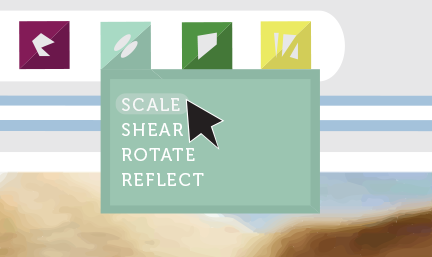
Menus are organized collections of commands and shortcuts. Click a menu to open it and display the commands and shortcuts within. Then click an item in the menu to execute it.
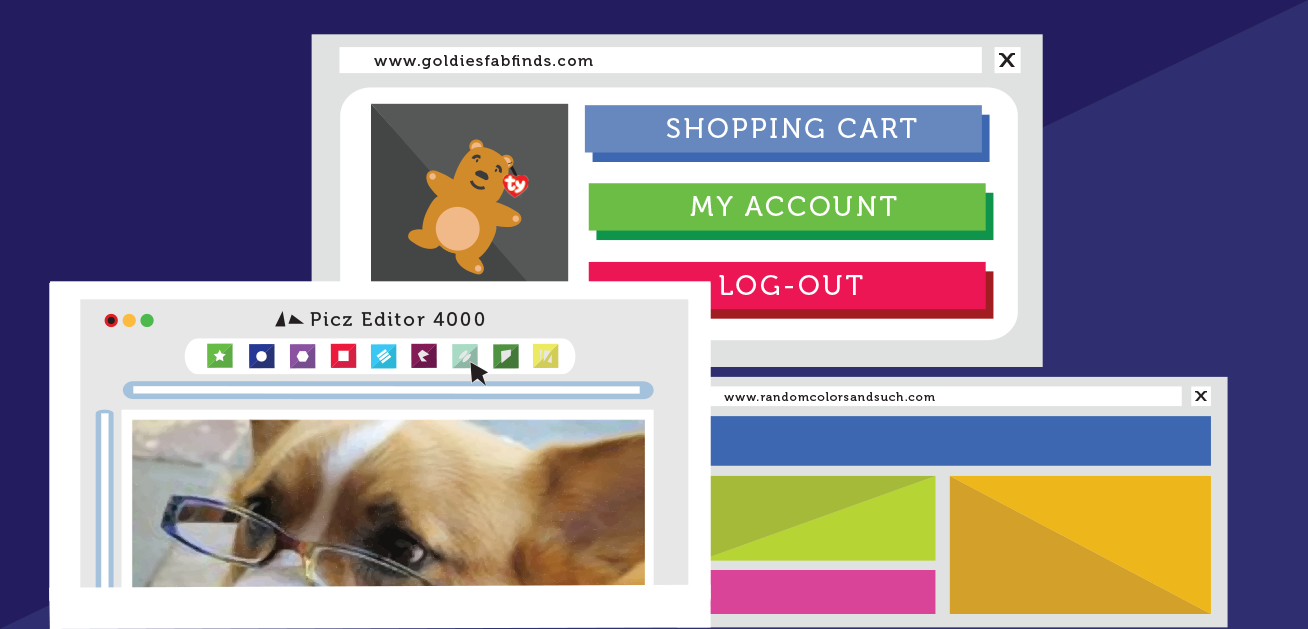
When you open an application or folder, it is displayed in its own window. A window is a contained area—like a picture within a picture—with its own menus and buttons specific to that program. You can rearrange multiple windows on the desktop and switch between them.



0 Comments